




Instruction for using reseller panel
Instruction for using the Reseller Panel
This guide explains how to log in, top up your balance, place orders, and request cancellations.
2) Overview - what you can do in the panel
- Top up your balance
- Add orders and track their status
- Request order cancellations
- Check current prices, stock availability, and delivery times
Important: ADMIN NOTE
Always read the ADMIN NOTE section - it is updated from time to time and includes working hours, contact methods, and key order requirements (e.g. minimum coins needed on the customer account).
3) How to pay for orders - top up your balance
Orders are paid from your EUR balance in the panel.
1
Click ADD BALANCE in the panel.
2
Enter the amount and choose a payment method: card through Stripe (Visa, Mastercard, Apple Pay, Google Pay), USDT through CoinPayments, or PayOp.
3
Complete the payment. Your balance is credited automatically - there is no need to report the payment.
Need invoices for your top-ups? Email [email protected] with your company details (company name, address, VAT / tax ID) and the top-ups the invoice should cover.
4) How to place orders
1
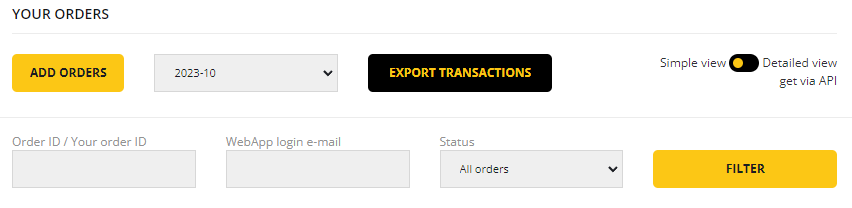
Scroll to YOUR ORDERS and click ADD ORDERS.
2
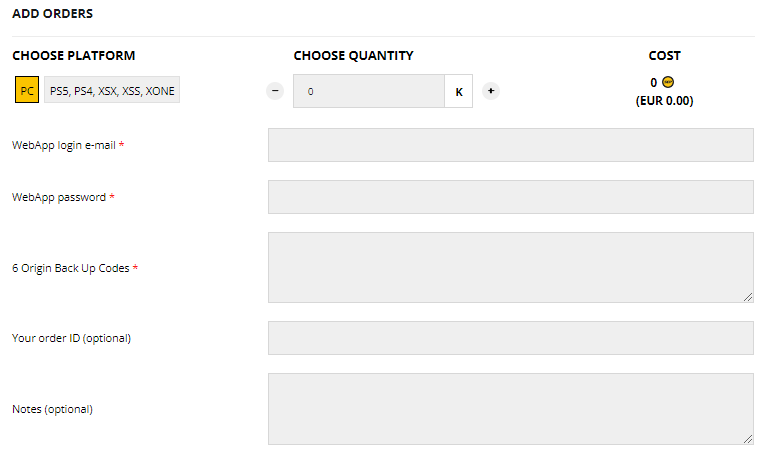
Choose the correct platform, enter the coin amount in K (example: 1,000K = 1 million), and enter the customer's current login details.
3
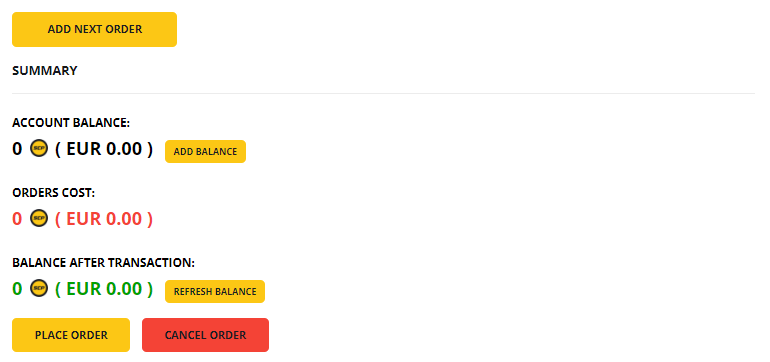
If you have multiple orders, click ADD NEXT ORDER to add another form. When ready, click PLACE ORDER.
You should receive an email confirmation for the orders placed. You can also track them under YOUR ORDERS on: supercoinsy.com/account/reseller
5) How to request order cancellation
If your customer wants to cancel an order after it has been placed/paid, you can request a cancellation from the YOUR ORDERS section here: supercoinsy.com/account/reseller
Alternatively, contact us to report a cancellation - we prefer email or Live Chat for cancellations.
Need help?
If you get stuck or notice any issues, contact our manager or customer service via Live Chat.
