




Before delivery: a checklist to send your FC coins customers
Short answer
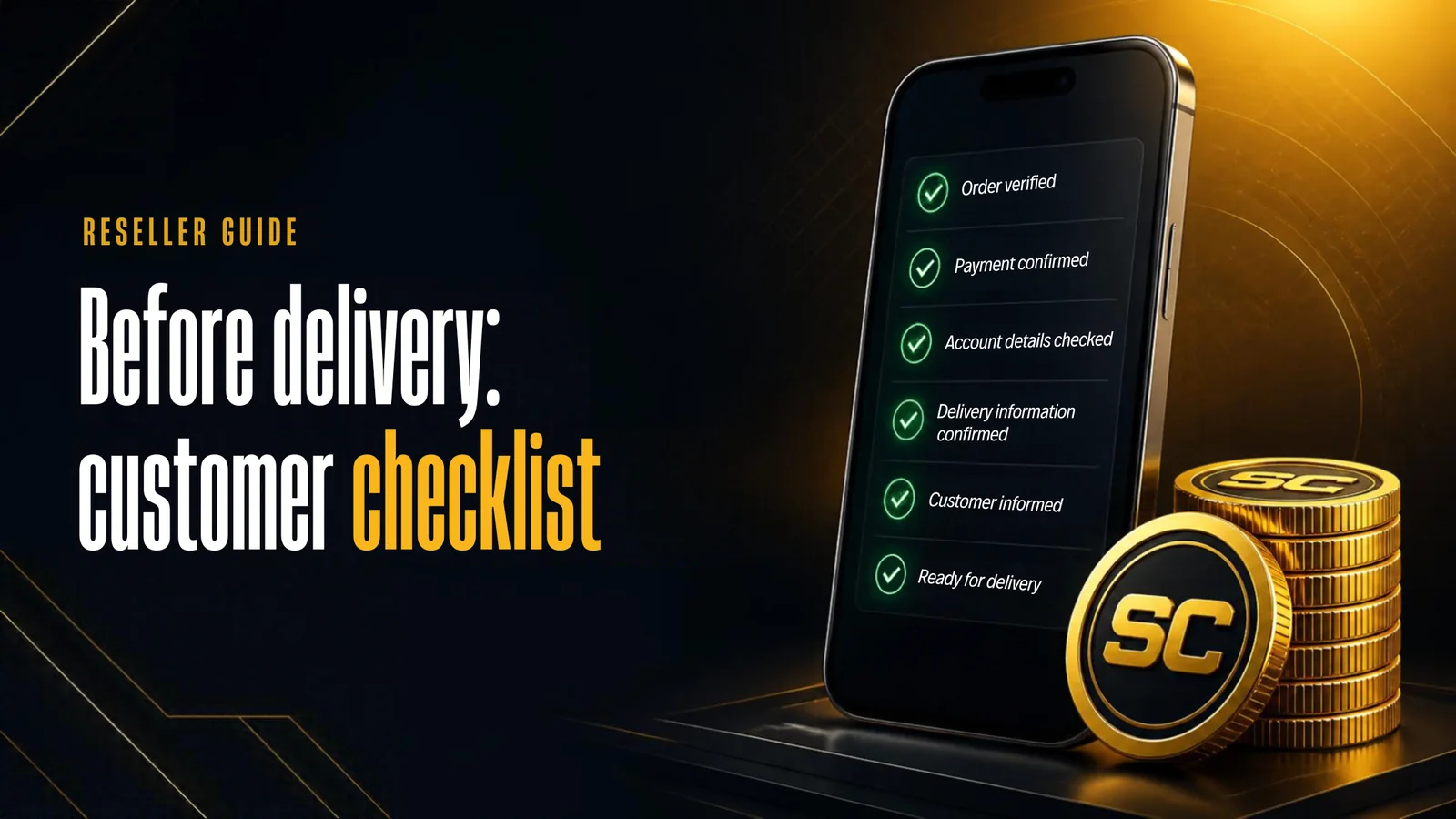
Before delivery, your customer needs at least 2,000 coins on the account, an unlocked transfer market, at least 5 free transfer list slots, cleared unassigned items, correct EA login details with fresh backup codes, and they must stay logged out of the game and the WebApp/Companion until delivery is complete. Below is a message you can copy and send.
Before delivery starts
When everything on this list is ready, delivery runs without delays.
✓Coins on the Ultimate Team accountThe more coins, the bigger part we deliver at once.min. 2,000
✓Transfer market in the WebApp/Companionunlocked
✓Free transfer list slotsmin. 5
✓Unassigned itemscleared
✓EA email and passwordLogging in to the WebApp once is the easiest check.correct
✓Backup codesEach code works once.fresh
✓Customer out of Ultimate TeamMain menu, then no logging in until delivery is complete.logged out
Why each point matters
- Coins on the account. Transfers need a starting balance on the account. More coins also means we can deliver a bigger part of the order at once.
- Transfer market and free slots. The coins arrive through the transfer market, so it has to be unlocked and there must be room on the transfer list.
- Unassigned items. A full unassigned pile can get in the way of the transfer, so it is best to clear it.
- Login details and backup codes. Without correct details we cannot log in, and the order waits until you send new ones.
- Staying logged out. If your customer logs in during delivery, our session ends and delivery cannot continue until they log out again.
A message you can copy and send to your customers
Paste it into your shop's order confirmation, your FAQ or a pinned message. Adjust the wording to your style.
Copy and send
Before we deliver your FC 27 coins, please check:
1. You have at least 2,000 coins on your Ultimate Team account.
2. The transfer market is unlocked in the WebApp/Companion.
3. You have at least 5 free slots on your transfer list.
4. Your unassigned items are cleared.
5. Your EA email and password are correct (log in to the WebApp once to check).
6. You have fresh, unused backup codes ready.
7. Exit Ultimate Team to the main menu, then do not log in to the game or the WebApp/Companion until we confirm delivery.
Common problems and quick fixes
Wrong password
The order waits until we can log in.
Ask your customer to check it in the WebApp and send the new one as a message to the order.
Used backup codes
Codes from an earlier order no longer work.
Ask for fresh codes and send them as a message to the order.
Customer logged in
Delivery stops while they are in the game or the WebApp.
Ask them to log out and stay out until you confirm delivery.
Frequently asked questions
Can my customer play while waiting for delivery?+
Not during delivery. From the moment it starts, your customer stays logged out of the game and the WebApp/Companion. If a large order is delivered in stages, they can use the account normally between stages.
What if my customer changed their password?+
Send the new password as a message to the order in the panel or through the API, together with fresh backup codes if needed.
Do I have to send this checklist with every order?+
It is best to share it before the first order and keep it on your website or in a pinned message. Returning customers usually know it by heart.
