




Finish your order
| Product name: | FC 27 Squad and Tactics - Premium (PC) |
| Price: | $ 11.23 / item |
| Maximum delivery time: | 24h |
Last step - give us your account details and we'll complete the SBC
In the fields below you enter the login details for your EA account (WebApp) and your one-time backup codes. Using them, we sign in to your account, top it up with the coins needed from our stock and complete the selected Squad Building Challenge - and the reward lands straight in your club. Below we explain step by step what to enter and where to find it.
What to enter in the form below
Your e-mail address
Your contact address. We'll send the order confirmation and status updates here. It does not need to be linked to your EA account.
WebApp login e-mail
The email address you use to sign in to your EA account and the WebApp.
WebApp login password
The password for the same EA account.
EA backup codes
One-time EA security codes. Provide 6 fresh codes. How to generate them - expand the guide below.
How fulfillment works
1
You enter your WebApp login details and EA backup codes in the form below.
2
We top up your account with the coins needed to complete the SBC - from our stock.
3
We complete the challenge - buy the players on the transfer market, build the squads and submit the SBC.
4
You get a completion confirmation - the rewards are waiting in your club.
On larger orders, for extra security, we apply up to a 36h gap between the top-up and completing the SBC. We always let you know about such a schedule in the order message.
Step-by-step guides (click to expand)
How to generate EA backup codes?
Backup codes are one-time EA security codes we use to complete your order. You can generate them in four steps:
1
Log in to your EA account settings - open account settings.
2
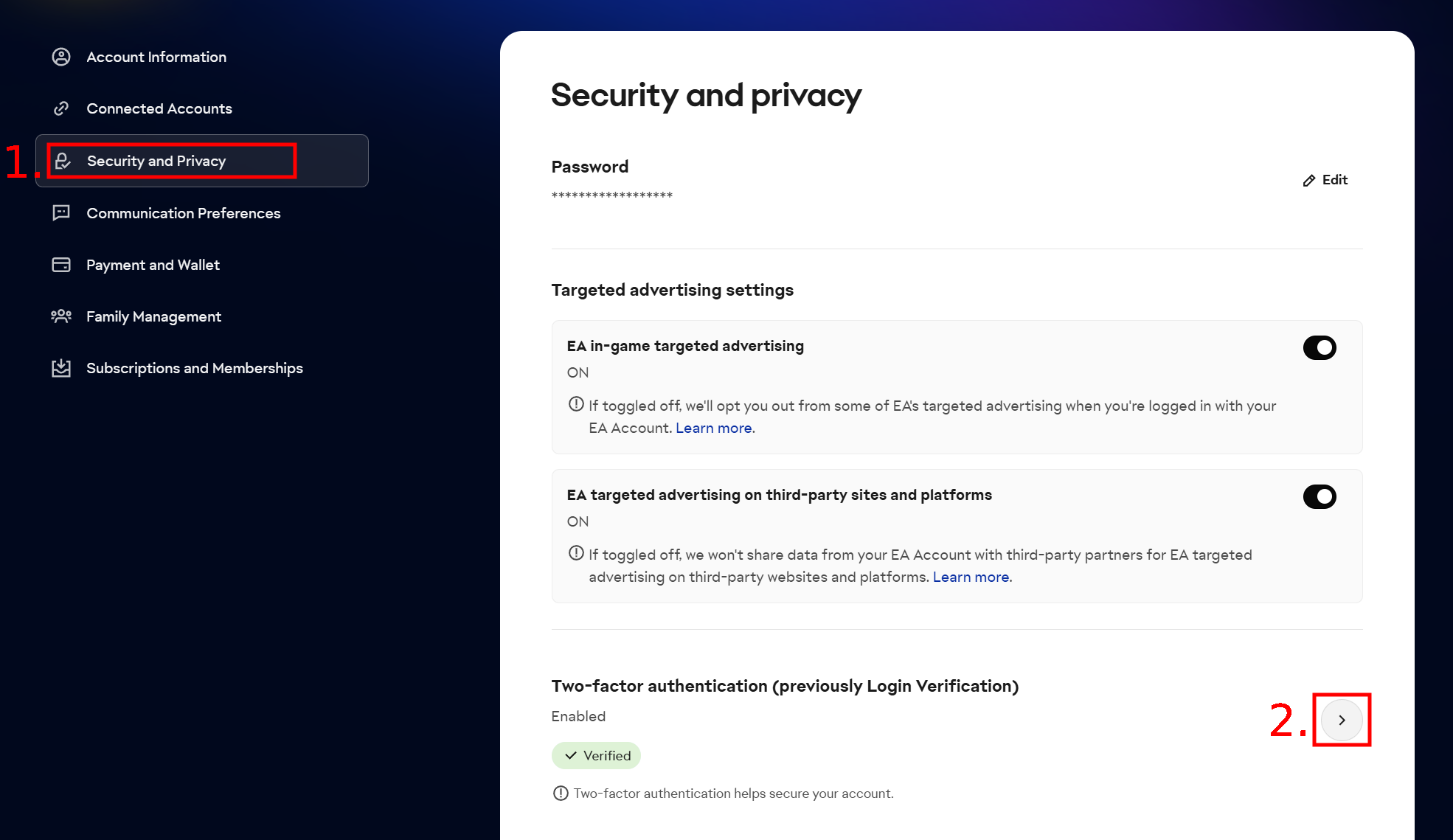
Go to the Security and Privacy tab and click the arrow next to Two-factor authentication - as shown in the image below.
3
Enter the 6-digit code EA sends to your email address and confirm. Make sure two-factor authentication is enabled - without it you cannot generate backup codes.
4
Click View backup codes and copy all the codes shown - as in the image below.
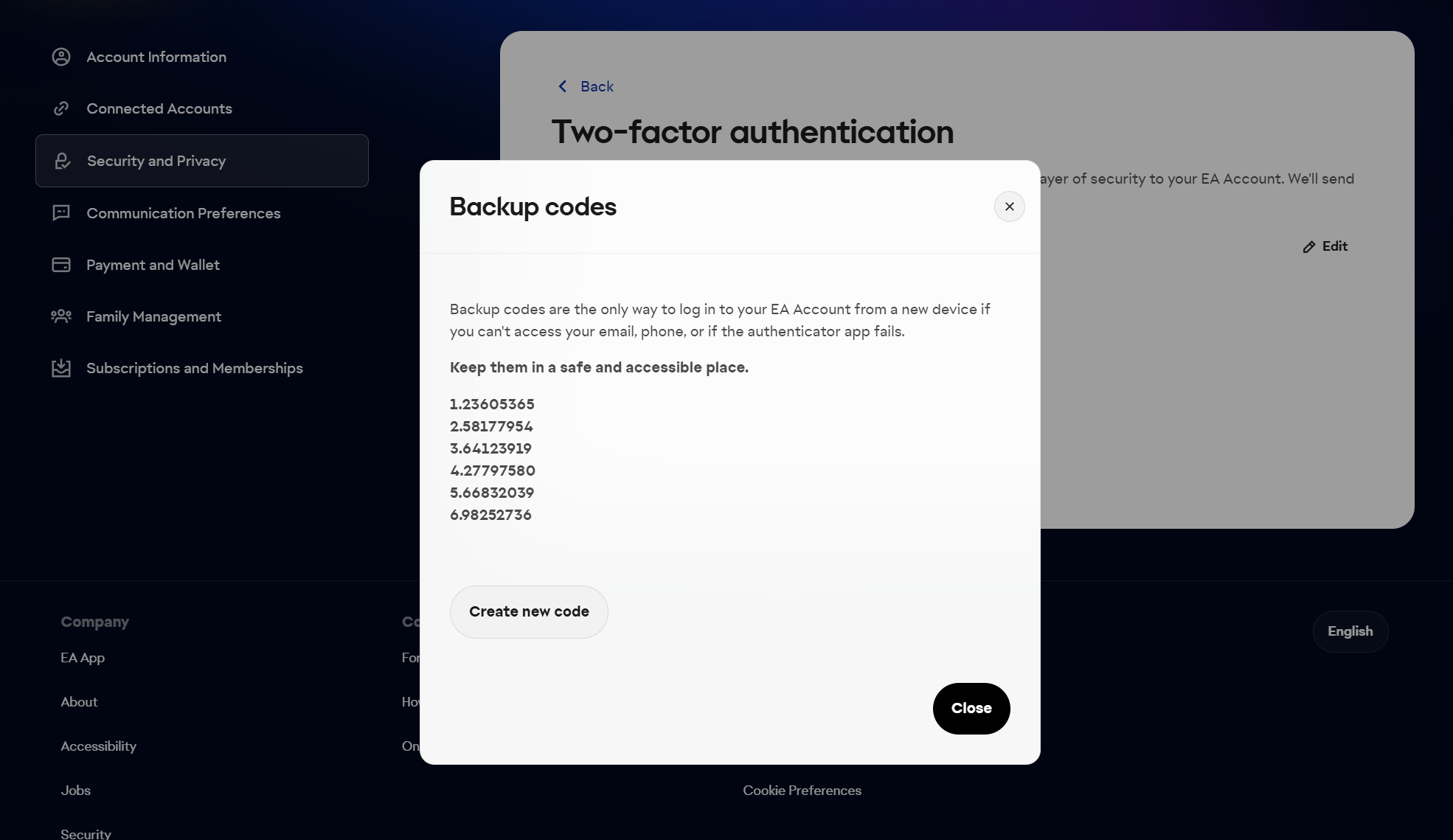
Provide all 6 codes
Paste all six freshly generated codes. If any of them turns out to be used, we will ask you for new ones and the delivery will take longer. Codes are single-use, so generate a fresh set for every new order.
Where do I find my WebApp e-mail and password?
How to check whether my transfer market is active?
We buy the players for your SBC squads on the transfer market, so your account must have access to it. The market is active on accounts that have played several matches in Ultimate Team over the past few days. To check whether your market is active:
1
Log in to the EA WebApp.
2
Select Transfers > Transfer Market.
If the page looks like this after loading:
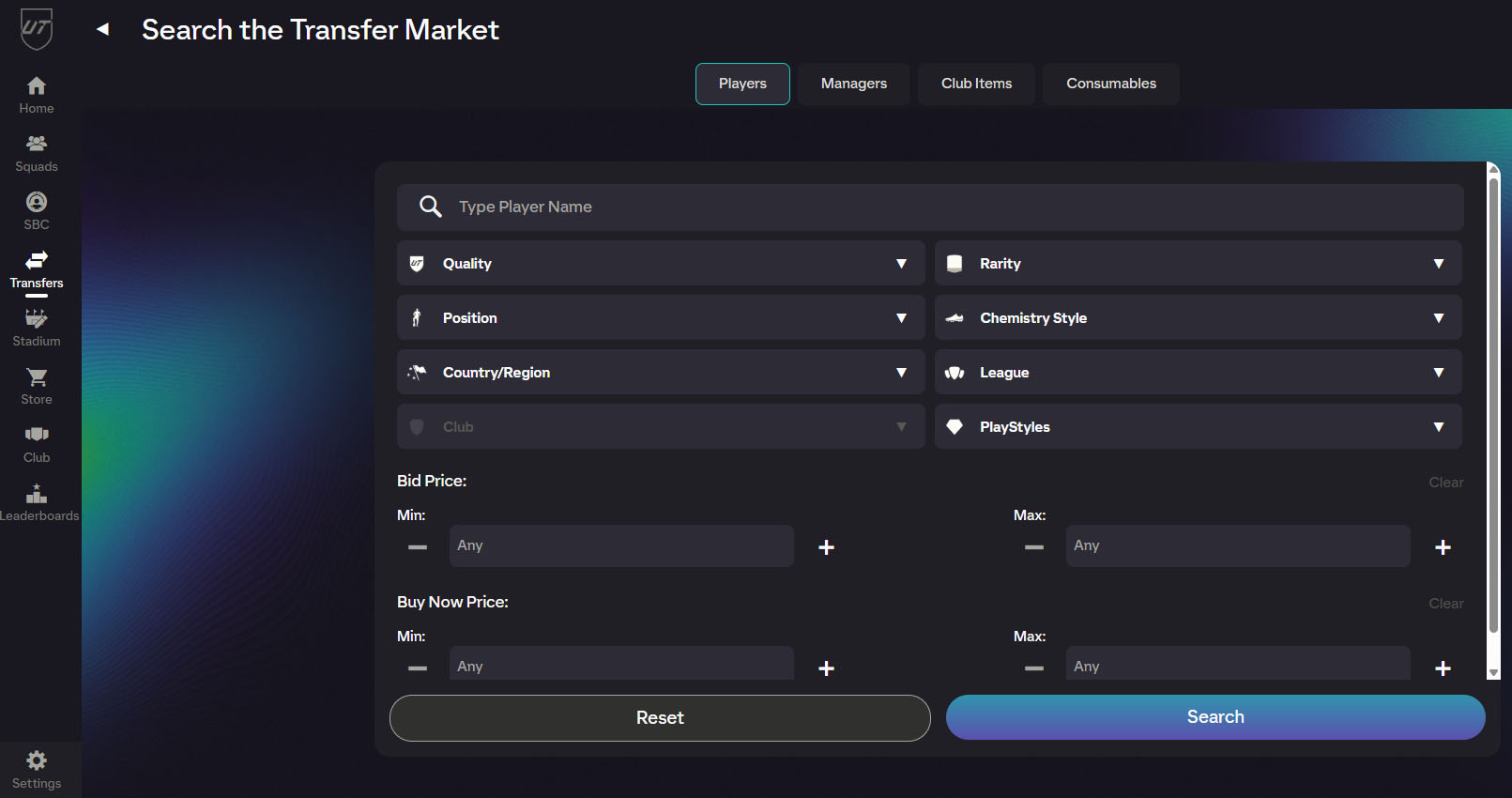
then your market is active and we can buy the players needed for your SBC.
Before you confirm your order
Leave the selected SBC for us to complete
We complete the challenge for you, so don't start or finish it yourself. Also make sure the selected SBC is still available in the game. If you complete it before fulfillment, we won't be able to process your order.
Log out of Ultimate Team
If you are logged in to Ultimate Team (in the game or the WebApp), return to the main menu before fulfillment. If you close the game or console while still in Ultimate Team, WebApp access is locked for about 30 minutes and delivery will be delayed.
Make sure your transfer market is active
We buy the players for your SBC squads on the transfer market, so your account must have access to it. See the section above for how to check.
Provide fresh backup codes
Backup codes are one-time use - generate a new set for every order and provide all 6 codes.
Your account's security
We use procedures refined since 2014. We use your login details solely to complete this order, and we tune the delivery parameters to protect your account as much as possible. Our team oversees every stage of the process.
Want all the details?
You'll find delivery limits, SBC repeat caps, bulk-order handling and the full FAQ in our guide.
Buy SBC - read the guide →All set? Fill in the fields below and click Add to cart ↓
Last step - your Web App details
We only log in to the Web App to set up your squad and tactics. We never ask for your email inbox password.
✓EA account emailThe one you use to log in to the game and the Web App.
✓EA account passwordCheck it by logging in to the Web App before you order.
✓6 EA backup codesNewly generated - paste all six.
How to generate EA backup codes?+
1Log in to your EA account settings.
2Go to Security and Privacy and click the arrow next to Two-step verification.
3Enter the 6-digit code EA sends to your email. Two-step verification must be turned on.
4Click View backup codes, generate new ones and copy all six.
One package covers one EA account. Don't add the same package to your cart twice.
After buying, email [email protected]: your order number, mode, coin budget and questions. Delivery time starts when we receive this email.
